Introduction
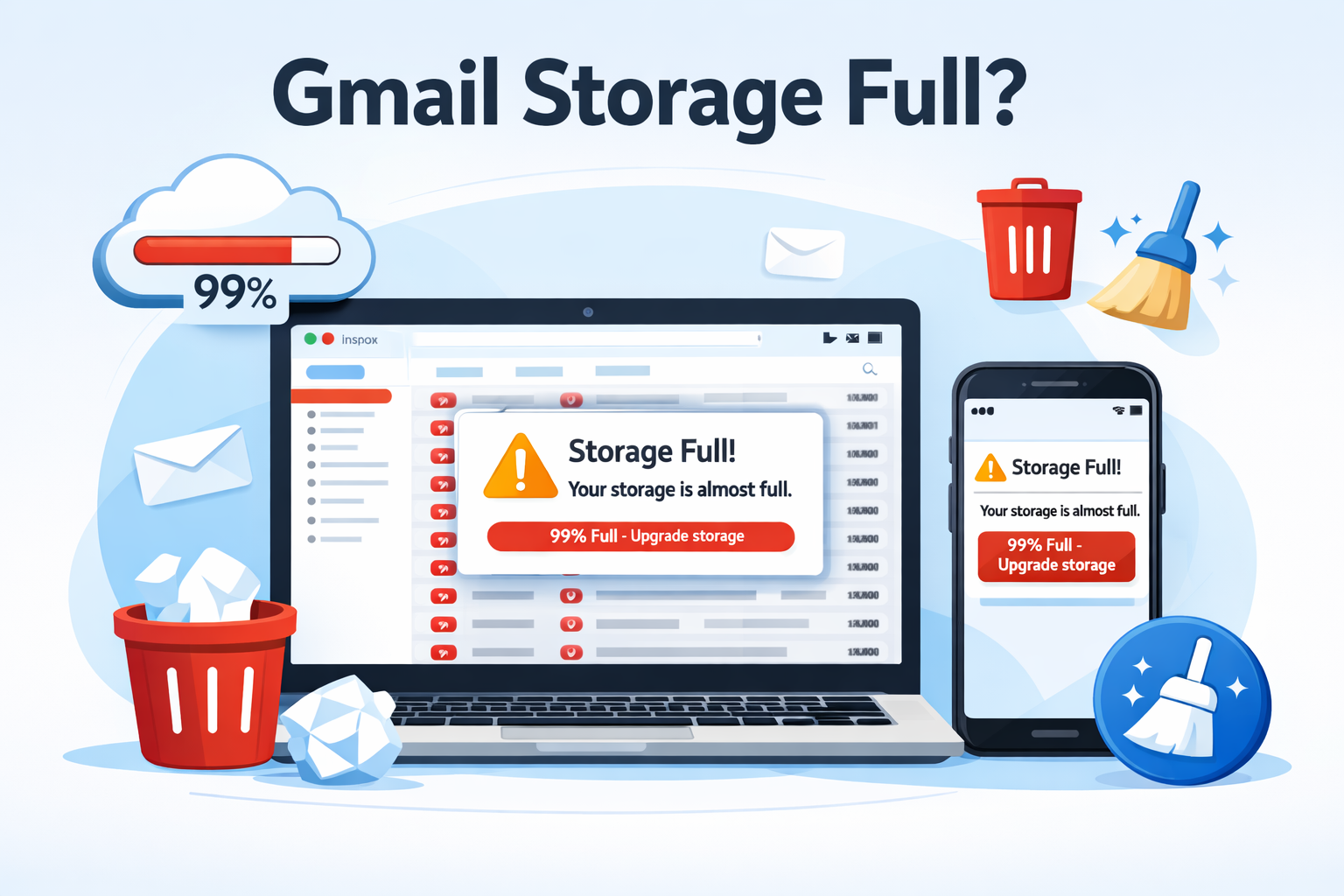
Gmail Storage Full? Space Free करने का आसान तरीका (2026) आज के Time में “Gmail Storage Full” एक बहुत Common Problem बन चुकी है। अचानक Gmail का Message आ जाता है — “Your storage is full. You can’t send or receive email.” और इसके बाद ना नया email आता है, ना भेजा जा सकता है। यह Problem खासकर 2026 में और ज्यादा देखने को मिल रही है, क्योंकि लोग Gmail को सिर्फ email के लिए नहीं बल्कि Documents, photos और Backup के लिए भी Use करने लगे हैं।
असल में Gmail, Google Drive और Google Photo — तीनों एक shared Google storage use करते हैं। यानी अगर Drive में Heavy files हैं या Photo में high-Quality Backup ON है, तो उसका असर सीधे Gmail Storage पर पड़ता है। इसलिए कई User सोचते हैं कि “मैंने Gmail में ज्यादा emails नहीं रखे, फिर भी storage full कैसे हो गया?”
2026 में यह Problem इसलिए भी Common हो गई है क्योंकि Email में बड़े attachments (PDF, videos) बढ़ गए हैं Google Photos Auto-Backup ज़्यादा Storage ले रहा है Drive में पुराने files और backups जमा हो जाते हैं
One-Line Definition
Gmail Storage Full वह स्थिति है जब आपके Google Account का Shared Storage (Gmail, Drive और Photos) पूरी तरह भर जाता है, जिससे Email भेजना और पाना बंद हो जाता है।
इस Guide में आप Step-by-Step सीखेंगे Gmail Storage क्यों भरता है Free में Space कैसे खाली करें बिना जरूरी email Delete किए Storage Manage कैसे करें अगर आप इस Article को Follow करेंगे, तो बिना किसी Technical knowledge के अपना Gmail Storage Safely और efficiently Free कर पाएँगे
2. Gmail Storage Full का मतलब क्या है?
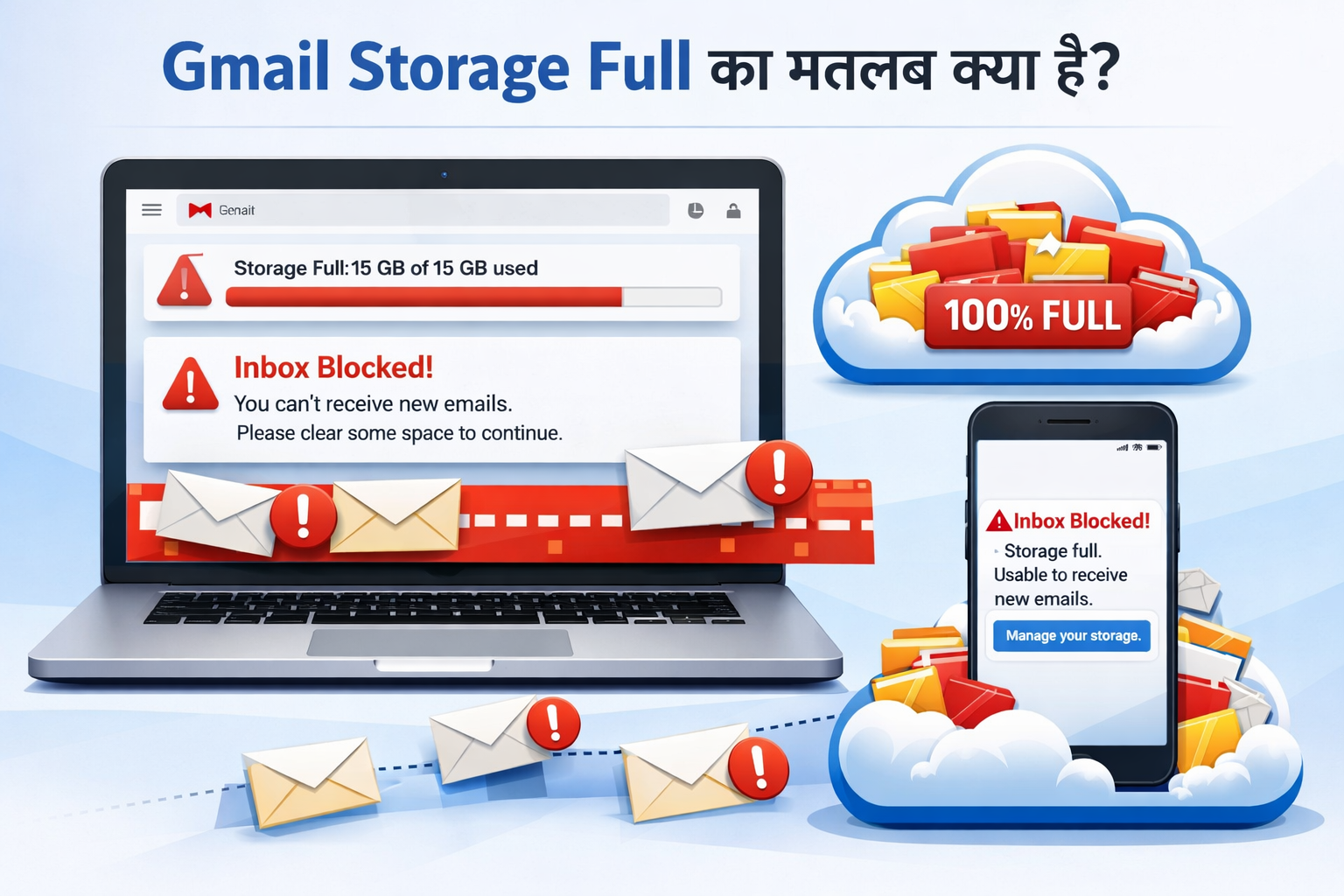
Gmail Storage Full का मतलब है कि आपके Google Account की 15GB free storage limit पूरी हो चुकी है। यह Storage सिर्फ Gmail ही नहीं, बल्कि Google Drive और Google Photos के साथ shared होती है। जब Storage Full हो जाती है, तब आप New emails receive नहीं कर पाते, attachments download/upload में Problem आती है और Google आपको “Storage full” या “You’re out of storage” जैसी warning दिखाता है। Simple word में, Gmail Storage Full होने पर आपका Account काम तो करता है, लेकिन emails Receive करना बंद हो जाता है जब तक आप Storage clear या Upgrade नहीं करते।
Google Storage कैसे काम करता है?
Google हर Account को 15GB free storage देता है, जो तीनों Services में Share होता है अगर इनमें से किसी एक में storage ज्यादा भर गया, तो Gmail भी block हो सकता है।
- Gmail (emails + attachments)
- Google Drive (files, backups)
- Google Photos (photos, videos)
3. Gmail Storage Full क्यों हो जाता है?
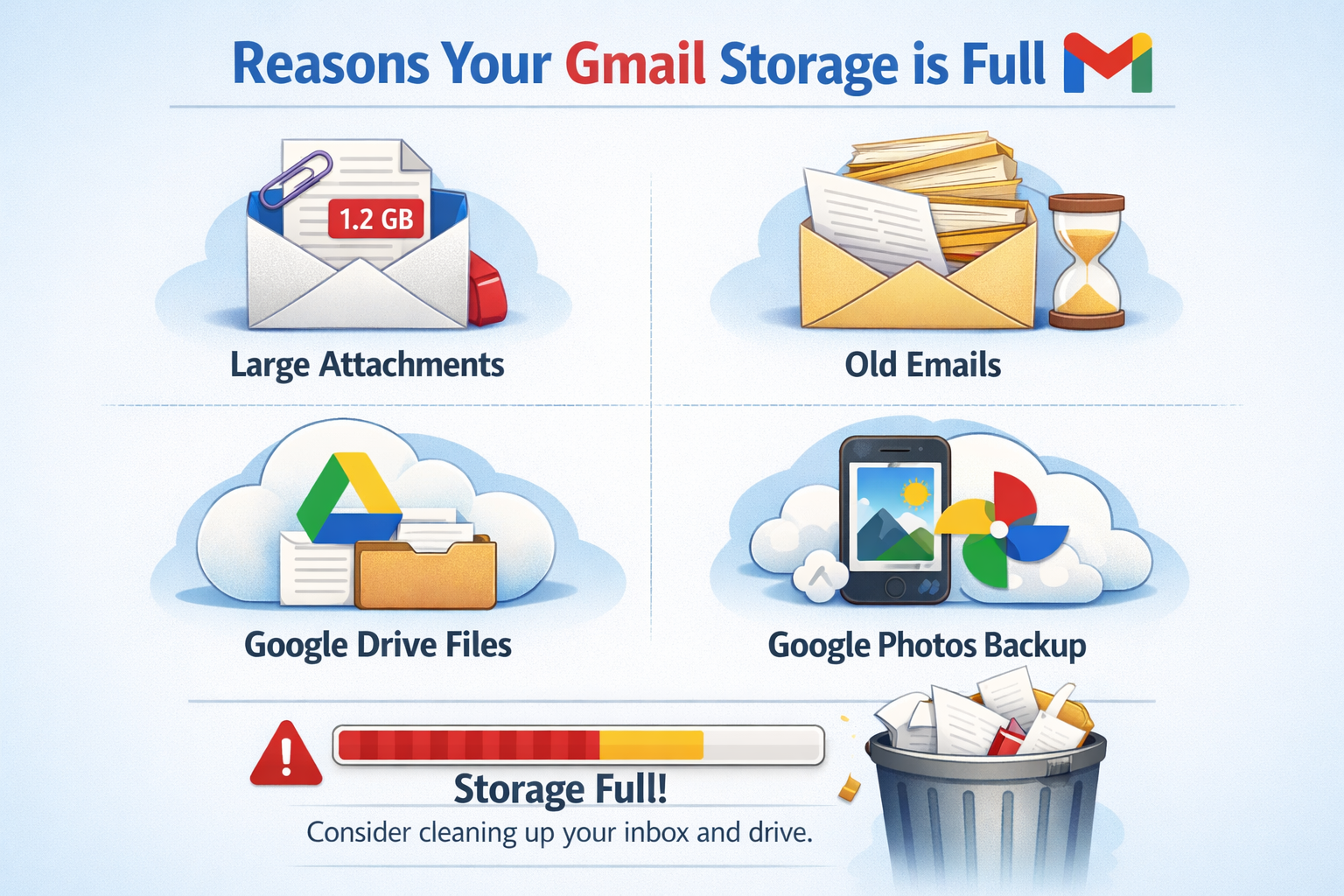
Gmail Storage Full होने का सबसे बड़ा कारण Google का shared storage system है। Gmail, Google Drive और Google Photos तीनों एक ही 15GB free Storage को share करते हैं, इसलिए अगर इनमें से किसी एक में भी ज्यादा Data जमा हो जाए, तो Gmail Storage Full दिखने लगता है। पुराने email, खासकर attachments वाले mails (PDF, videos, ZIP files), Google Drive में बड़े Files या Backups, और Google Photos में High-quality photo/video backup — ये सभी धीरे-धीरे storage consume करते रहते हैं। इसके अलावा Spam और Trash Folders को Regularly Empty न करना भी Storage भरने का कारण बनता है। अक्सर Users सोचते हैं कि उन्होंने Gmail में ज्यादा Email नहीं रखे, फिर भी Storage full हो गया, जबकि असल में Drive और Photos Background में Storage खा रहे होते हैं।
4. Gmail Storage Full होने के नुकसान
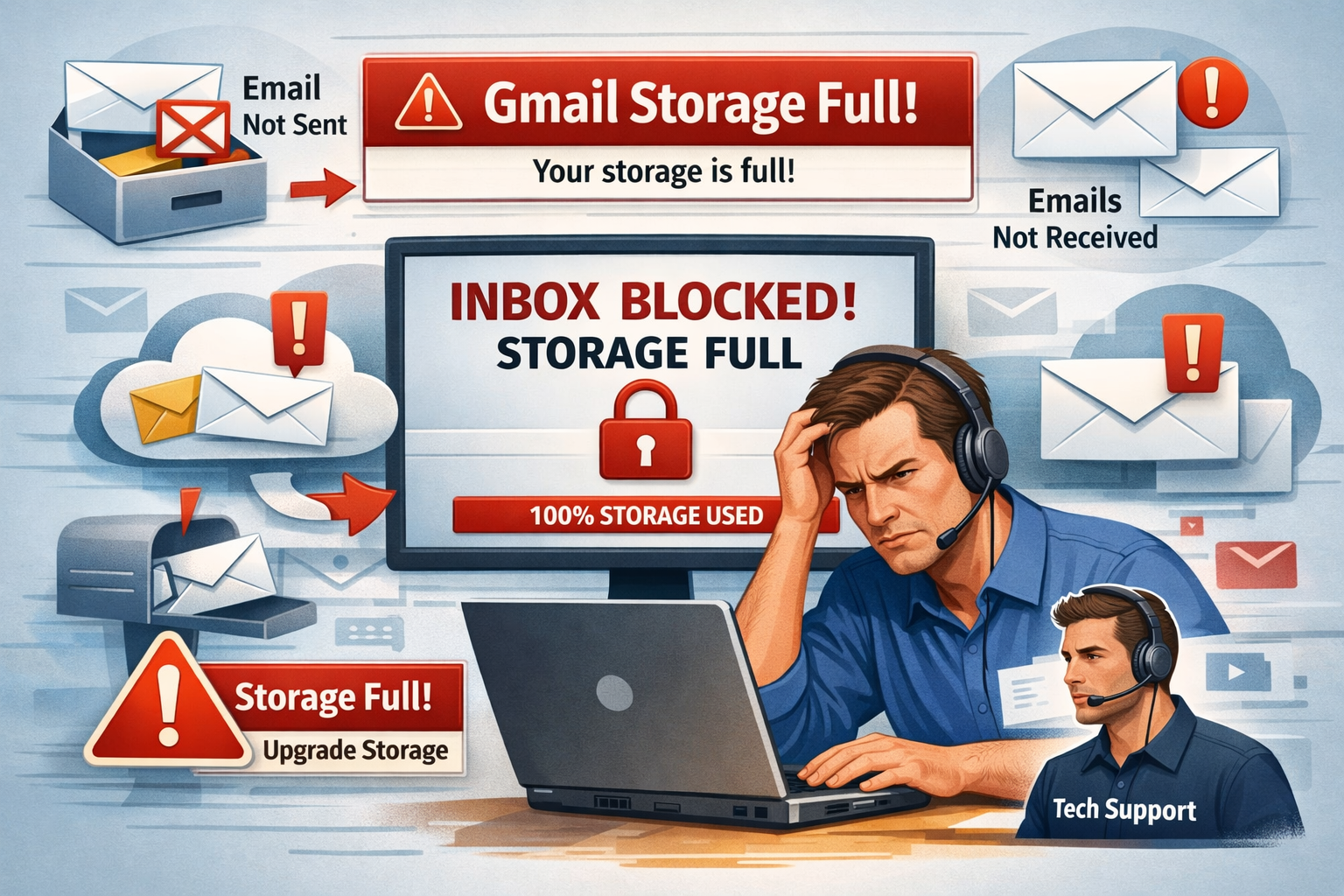
जब Gmail Storage Full हो जाती है, तो इसका सीधा असर आपके पूरे Google Account पर पड़ता है। सबसे बड़ा नुकसान यह है कि आप New email Receive नहीं कर पाते, जिससे important OTP, Bank alerts या office Mail Miss हो सकते हैं। Large attachments Download या Send नहीं होते और Gmail Slow Behave करने लगता है। इसके अलावा Google Drive में new files upload नहीं हो पातीं और Google Photos का Backup भी Stop हो जाता है। अगर Storage लंबे समय तक Full रहती है, तो Productivity और Data Management दोनों पर Negative impact पड़ता है, इसलिए Time रहते Storage Clear करना जरूरी होता है।जब Storage full हो जाता है, तो इसके direct effects दिखते हैं:
- New email Receive नहीं होता
- Email Send fail हो जाता है
- Google Drive Upload block
- Mobile Backup Problem
- Work और Productivity पर असर
5. Gmail Storage कितना Use हो रहा है कैसे check करें?
Gmail Storage usage check करने के लिए सबसे आसान तरीका है Google Storage page का use करना। सबसे पहले अपने Google Account में login करें और one.google.com/storage open करें। यहाँ आपको total 15GB free storage का Complete Breakup दिखेगा—कितना Space Gmail, Google Drive और Google Photos ने Use किया है।
इसके अलावा Gmail Web Version में नीचे की तरफ भी एक Storage indicator Bar दिखाई देता है, जिससे आपको idea मिल जाता है कि Storage लगभग कितनी भर चुकी है। Regularly Storage Check करने से आप Time पर Unwanted email, large Attachments या Files Delete कर सकते हैं और “Storage Full” problem से बच सकते हैं।
6. Gmail में Large Email कैसे ढूंढें?
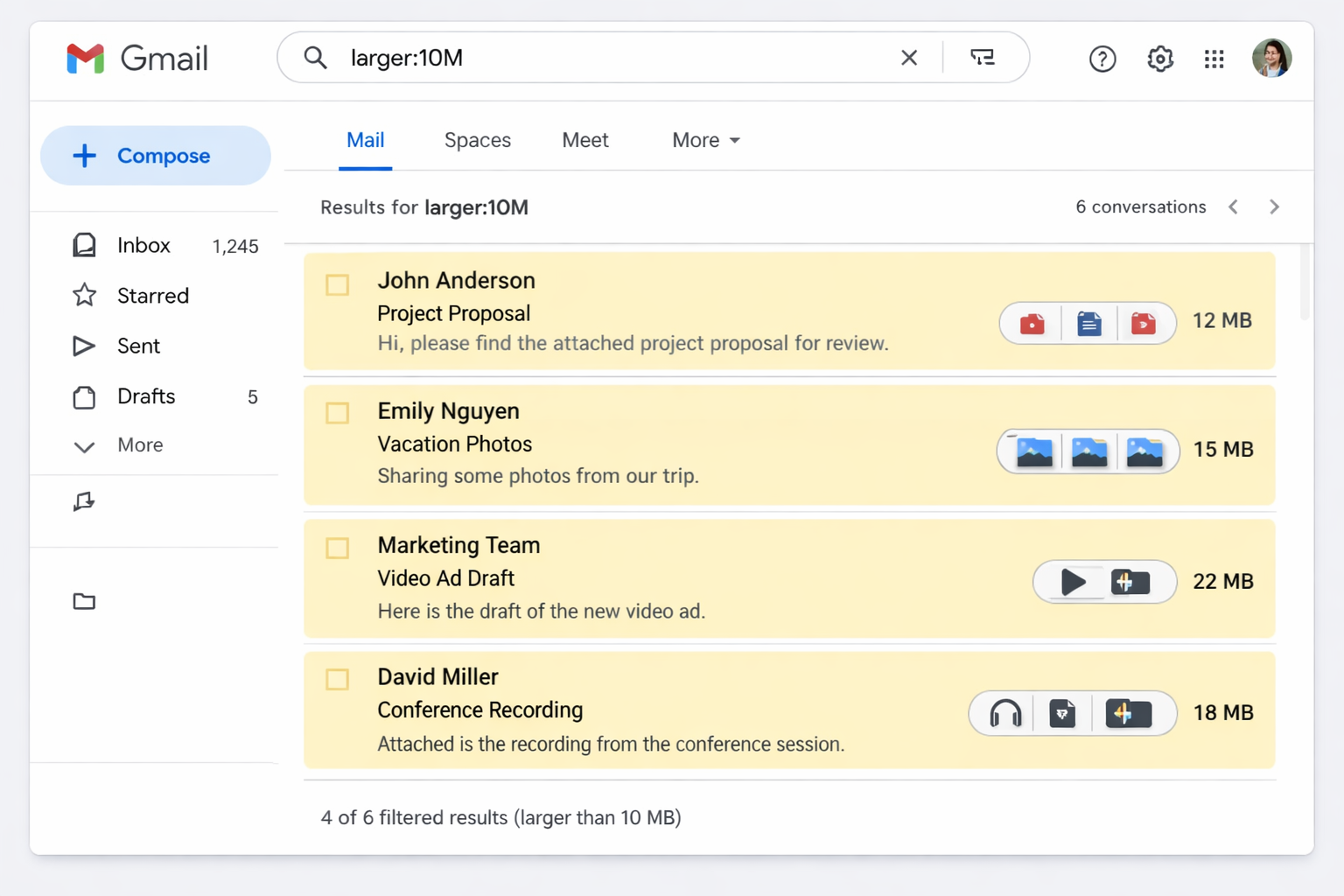
Gmail में large emails ढूंढने के लिए Gmail के advanced search filters का use करना सबसे आसान तरीका है। Gmail open करने के बाद search bar में has:attachment type करें, इससे सभी attachment वाले emails दिख जाएंगे। अगर आपको सिर्फ Heavy email ढूंढने हैं, तो larger:10M या larger:5M जैसे commands Use कर सकते हैं, जिससे 10MB या 5MB से बड़े email सामने आ जाते हैं। इसके अलावा date-wise filtering करके पुराने email भी आसानी से identify किए जा सकते हैं, जो लंबे समय से inbox में पड़े होते हैं और unnecessary storage consume कर रहे होते हैं। इन Filters की मदद से आप Quickly large Email Find करके Delete या Archive कर सकते हैं और Gmail Storage free कर सकते हैं।Large email सबसे ज्यादा storage लेते हैं।
7. Gmail से Unwanted Email Delete कैसे करें?
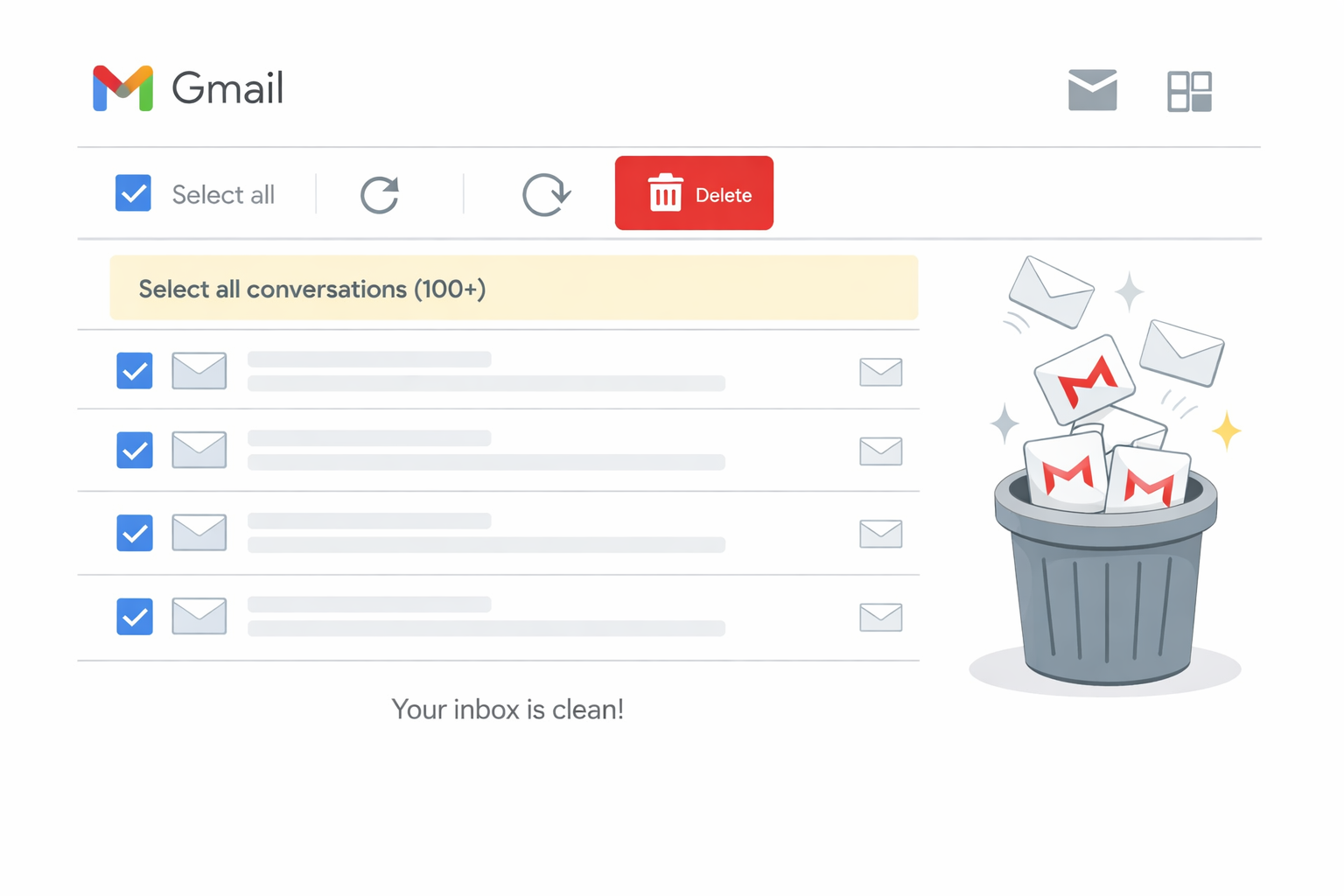
Gmail से unwanted email delete करना Gmail storage free करने का सबसे easy और effective तरीका है। सबसे पहले Gmail Open करें और Search bar में ऐसे keyword या filter use करें जैसे Promotions, Newsletters या older email, ताकि वे mails दिखें जिनकी अब जरूरत नहीं है। इसके बाद “Select All” option का use करके एक साथ कई email Select करें और delete कर दें। अगर आपके inbox में बहुत सारे promotional या Marketing email आते हैं, तो उन्हें manually delete करने के साथ-साथ future में ऐसे mails रोकने के लिए unsubscribe करना भी Smart move है। ध्यान रखें कि email delete करने के बाद Trash folder जरूर empty करें, क्योंकि जब तक trash साफ नहीं होता, storage actually free नहीं होती। अगर आप यह Habit Regularly अपनाते हैं, तो Gmail inbox Clean रहेगा और Storage जल्दी Full होने की Problem भी नहीं आएगी।
क्या Delete करें? Promotions emails , Old newsletters , Unused notifications
8. Spam और Trash Folder Empty करना क्यों जरूरी है?
Spam और Trash folders empty करना जरूरी इसलिए होता है क्योंकि इनमें मौजूद emails भी आपकी Gmail Storage Space Use करती रहती हैं। कई Users सोचते हैं कि spam या delete किए गए emails storage नहीं लेतीं, लेकिन Reality यह है कि जब तक आप Spam और Trash को permanently empty नहीं करते, तब तक Space Free नहीं होती।
Spam और Trash Regularly Clear करने से Gmail Storage जल्दी Free होती है Account Fast और Clean रहता है Important email Future में Receive करने में Problem नहीं आती इसलिए storage full issue से बचने के लिए Spam और Trash Folder को Time-to-time Empty करना बहुत जरूरी है।
9. Google Drive से Space Free कैसे करें?
Google Drive से space free करने के लिए सबसे पहले Drive की storage usage समझना जरूरी है। Drive open करके “Storage” Section में जाएँ, जहाँ आपको largest files सबसे ऊपर दिखाई देंगी। यहाँ से आप पुराने, Unused या Duplicate files को identify करके Delete कर सकते हैं, खासकर Heavy files जैसे videos, ZIP folders और पुराने Backup। कई बार Shared Files भी storage consume करते हैं, इसलिए उन files को भी Check करें जिनकी अब जरूरत नहीं है। Files Delete करने के बाद Trash Folder को empty करना बहुत जरूरी है, क्योंकि जब तक trash साफ नहीं होती, Storage Actually free नहीं होती। अगर आप time-to-time यह Cleanup करते रहते हैं, तो Google Drive का Storage control में रहता है और Gmail storage full होने की problem भी अपने आप कम हो जाती है।
10. Google Photos से Storage Free कैसे करें?
अगर आपकी Gmail Storage Full हो रही है, तो उसका सबसे बड़ा reason अक्सर Google Photos होता है, क्योंकि photos और Videos काफी ज्यादा Space Consume करते हैं। Google Photos की Storage भी Gmail और Drive के साथ shared होती है, इसलिए यहाँ से Space Free करना बहुत effective होता है।
Step 1: Google Photos Storage Check करें
सबसे पहले photos.google.com या one.google.com/storage open करें और देखें कि Google Photos कितना Storage Use कर रहा है। इससे आपको idea मिल जाएगा कि कहाँ सबसे ज्यादा space जा रही है।
Step 2: Large Videos और Unwanted Photos Delete करें
Google Photos में videos, खासकर HD या long videos, बहुत ज्यादा space लेती हैं। Unwanted videos, duplicate photos, screenshots और blurry images delete करें।
Step 3: “Review and Delete” Option Use करें
Google Photos में “Manage Storage” section में जाकर Google खुद आपको suggest करता है इन suggestions को review करके delete करने से जल्दी storage free होती है।
- Large files
- Blurry photos
- Screenshots
Step 4: Trash (Bin) Folder Empty करें
बहुत लोग यह Step भूल जाते हैं। Delete की गई photos/videos Trash (Bin) में रहती हैं और 30 days तक storage use करती रहती हैं। Bin open करें और “Empty Trash” जरूर करें।
Step 5: Storage Saver Quality Use करें
अगर Option Available हो, तो photos/videos को “Storage Saver” quality में Convert करें। इससे Quality Almost Same रहती है, लेकिन File Size कम हो जाता है और extra space free हो जाती है।
11. Gmail Attachments Download करके Delete कैसे करें?
Gmail में large attachments (PDF, videos, images, ZIP files) आपकी storage को सबसे जल्दी भर देते हैं। इसलिए best तरीका यह है कि पहले important attachments download कर लें और फिर Gmail से delete करके storage free करें।
Step 1: Large Attachments वाले Email Find करें
Gmail open करें और search bar में ये keywords use करें:
has:attachmentlarger:10M(10MB से बड़े attachments)
इससे आपको ऐसे emails दिखेंगे जो ज्यादा storage ले रहे हैं।
Step 2: Attachment Download करें
Email Open करें और attachment पर Download button click करें। Downloaded file आपके computer या mobile में Save हो जाएगी। Important files को पहले safe folder या Google Drive/USB में save कर लें।
Step 3: Email को Delete करें
Download करने के बाद उसी email को Delete (Trash) में डाल दें। एक साथ Multiple Email select करके Delete करने से ज्यादा Storage जल्दी Free होती है।
Step 4: Trash Folder Empty करें
Delete करने के बाद Gmail के Trash folder में जाएँ और “Empty Trash now” पर click करें।
Trash Empty किए बिना Storage Actually free नहीं होती।
12. Mobile Phone से Gmail Storage Free कैसे करें?
अगर आप ज़्यादातर Gmail mobile phone पर use करते हैं और “Gmail Storage Full” का message आ रहा है, तो घबराने की जरूरत नहीं है। Mobile से ही आप आसानी से Gmail storage free कर सकते हैं, बस सही steps follow करने होंगे।
Step 1: Gmail App में Large Emails Search करें
सबसे पहले Gmail app open करें और search bar में लिखें:
has:attachmentlarger:10M
इससे वो emails दिखेंगे जिनमें large attachments हैं और जो ज्यादा storage use कर रहे हैं।
Step 2: Important Attachments Download करें
Email open करें और attachment पर tap करके उसे mobile में download कर लें।
अगर file बहुत important है, तो उसे Google Drive, phone storage या SD card में save कर लें।
Step 3: Emails Delete करें
Attachment download करने के बाद उसी email को Delete कर दें।
Multiple emails को long-press करके select → delete करने से storage जल्दी free होती है।
Step 4: Spam और Trash Folder Empty करें
Gmail app में जब तक Trash empty नहीं करेंगे, storage free नहीं होगी।
- Menu (☰) → Spam → Empty Spam
- Menu (☰) → Trash → Empty Trash
Step 5: Google Photos से Storage Free करें
Mobile पर Google Photos app open करें Google Photos की storage भी Gmail के साथ shared होती है।
-
Large videos, duplicate photos delete करें Bin (Trash) empty करना न भूलें
Step 6: Google Storage Manager Use करें
Mobile browser में one.google.com/storage open करें। यहाँ से आप तीनों की storage easily manage कर सकते हैं।
- Gmail
- Google Drive
- Google Photos
13. Computer / Laptop से Gmail Storage Free कैसे करें?
अगर आपका Gmail Storage Full हो गया है और emails send/receive नहीं हो पा रहे, तो computer या laptop से storage free करना सबसे आसान तरीका होता है। Gmail का storage सिर्फ emails तक limited नहीं होता—यह Gmail, Google Drive और Google Photos के साथ shared होता है। इसलिए Gmail clean करने से overall Google storage भी free होती है।
सबसे पहले computer/laptop पर browser से mail.google.com open करें और अपने Gmail account में login करें। यहाँ से आप बड़े emails, old messages और unnecessary attachments delete करके storage quickly free कर सकते हैं।
Gmail Storage Free करने के Best तरीके (PC/Laptop)
1️⃣ Large Emails Search करें
Gmail search bar में larger:10M या larger:5M type करें। इससे बड़े size वाले emails दिखेंगे, जिन्हें delete करने से ज्यादा storage free होती है।
2️⃣ Attachments वाले Emails Delete करें
Photos, videos और PDFs वाले emails ज्यादा space लेते हैं। Important attachments पहले download कर लें, फिर email delete कर दें।
3️⃣ Spam और Trash Folder Empty करें
Spam और Trash में पड़े emails भी storage use करते हैं। Left menu में जाकर Spam → Empty Spam now और Trash → Empty Trash now जरूर करें।
4️⃣ Old Emails Bulk में Delete करें
Search bar में before:2022/01/01 जैसे keywords use करके पुराने emails find करें और bulk में delete करें।
5️⃣ Google Drive से Large Files Remove करें
drive.google.com खोलें → Storage section में जाकर large files delete करें, क्योंकि Drive भी Gmail storage share करता है।
6️⃣ Google Photos Clean करें
photos.google.com में जाकर unnecessary photos/videos delete करें, खासकर old backups।
7️⃣ Trash Permanently Empty करें
Delete करने के बाद Trash empty करना जरूरी है, वरना storage free नहीं होती।
Simple rule याद रखें: Delete → Trash Empty = Storage Free
इन steps को follow करके आप computer/laptop से Gmail storage easily free कर सकते हैं और future में “Storage Full” problem से बच सकते हैं।
14. Gmail Storage जल्दी भरने से कैसे बचें? (2026 Tips)
2026 में Gmail storage जल्दी भरने का main reason है heavy attachments, photos, videos और unnecessary emails। अगर आप कुछ smart habits follow करें, तो “Storage Full” problem से आसानी से बच सकते हैं।
- Large Attachments Regularly Clean करें Month में कम से कम एक बार Gmail search bar में
larger:10Mयाhas:attachmentsearch करें और old, unwanted emails delete करें। - Spam और Trash Automatically Empty रखें Spam और Trash folders में पड़े emails भी storage use करते हैं। Time-to-time Spam और Trash empty करना बहुत जरूरी है।
- Google Photos में Storage Saver Mode Use करें Google Photos में Storage Saver quality enable रखें। इससे photo quality almost same रहती है लेकिन file size कम हो जाता है।
- Gmail Forwarding & Filters Check करें Unnecessary auto-forwarded emails और heavy newsletters filters की वजह से storage भरती है। Old filters और forwarding rules review करें।
- Attachments Download करके Gmail से Delete करें Important attachments पहले download / backup कर लें और फिर Gmail से email delete करें।
- Unwanted Newsletters Unsubscribe करें Promotional mails और newsletters Gmail storage धीरे-धीरे भर देते हैं। Unwanted subscriptions से unsubscribe करें।
- Google Storage Manager Use करें Regularly one.google.com/storage check करें और Gmail, Drive, Photos की usage monitor करें।
15. Gmail Storage Upgrade करना सही है या नहीं?
16. Gmail Storage Full से जुड़े Common Myths
❌ Email delete करने से storage free नहीं होता
❌ सिर्फ Gmail storage भरता है
❌ Trash empty करना जरूरी नहीं
👉 Reality: Gmail + Drive + Photos = Shared Storage
17. Gmail Storage Full के Common Errors
जब Gmail Storage Full हो जाती है, तो users को कई तरह के common errors देखने को मिलते हैं। सबसे पहले new emails receive नहीं होते, और sender को delivery failure message मिल सकता है। कई बार Gmail में “You’re out of storage” या “Storage quota exceeded” जैसी warning दिखाई देती है। Large attachments upload या download नहीं होते और Gmail slow respond करने लगता है। इसके अलावा Google Drive में files upload fail हो जाती हैं और Google Photos का backup भी automatically stop हो जाता है। ये सभी errors इस बात का clear signal होते हैं कि आपकी Google storage limit पूरी हो चुकी है और तुरंत action लेना जरूरी है।
FAQs
Q1. Gmail Storage full कैसे ठीक करें?
Unwanted emails, Drive files और Photos delete करें।
Q2. Email Delete करने के बाद space कब free होता है?
Trash empty करने के तुरंत बाद।
Q3. Free में Storage बढ़ सकता है?
Directly नहीं, लेकिन cleanup से काफी space मिल जाती है।
Q4. Mobile से Storage Free कैसे करें?
Gmail, Drive और Photos app से।
5: क्या Storage Upgrade करना जरूरी है?
जरूरी नहीं। पहले free methods से storage clear करें। अगर फिर भी problem आए, तब upgrade consider करें।
Conclusion
Gmail Storage Full एक serious लेकिन easily fixable problem है। अगर आप Gmail, Google Drive और Google Photos को smart तरीके से manage करें, तो बिना पैसे खर्च किए भी काफी storage free कर सकते हैं।
👉 Best Advice: पहले Free Cleanup करें, फिर ही Paid Upgrade का फैसला लें।
अभी अपना Gmail storage check करें Unwanted files Delete करें इस Guide को friends और family के साथ Share करें Smart Cleanup Today = Smooth Gmail tomorrow